Guides/Team and account
Manage your account
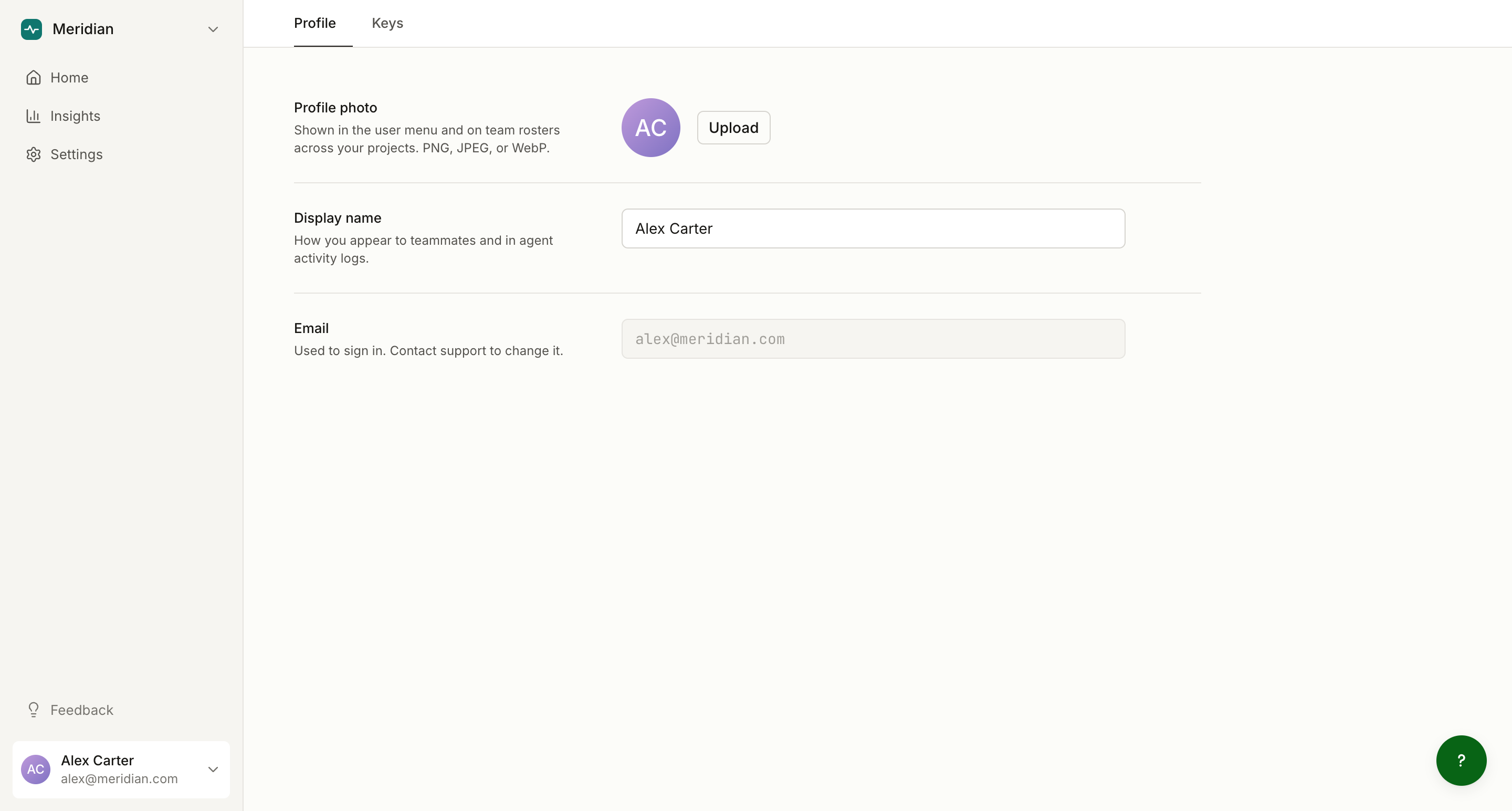
Your account settings live under Account in the dashboard, in two tabs: Profile and Keys.
Profile
- Display name: how you appear to teammates and in the activity feed when you publish. Work done through your coding tool is attributed to you too, labeled with the tool that did it (for example, "via Claude Code").
- Profile photo: PNG, JPEG, or WebP.
- Email: shown read-only. It is how you sign in; contact support to change it.
Keys
The Keys tab holds everything that connects software to your account.
API keys
API keys authenticate the MCP server without a browser, for CI pipelines and headless environments. They start with clayo_sk_ and behave like passwords:
- The full key is shown once, at creation. Copy it then; afterwards only its name and a masked prefix are visible.
- Each key shows when and from which client it was last used, so stale keys are easy to spot.
- Revoke a key at any time to cut off anything still using it.
For day-to-day authoring in Claude Code, Cursor, or Codex you do not need an API key; the standard connection flow signs in through your browser. See MCP server overview and authentication.
Connected tools
Every AI tool you have connected through the browser flow is listed here with its last activity. Revoking a connection signs that tool out everywhere it is installed.
OpenAI key
If you own projects, your OpenAI key row lives here too. It is write-only: paste it once and it is never displayed again. Details: Bring your own OpenAI key.