Guides/Getting started
Create your project
A project is one product's docs: its articles, settings, team, and public site. To get started, sign in at clayo.com and create one. It takes about a minute.
Sign in
Go to clayo.com and continue with Google, or enter your email address. Email sign-in sends a 6-digit code to your inbox; the form submits as soon as you type the sixth digit. Codes expire after 15 minutes and allow 3 attempts, and you can request a new one after 30 seconds.
There is no separate sign-up: the first sign-in creates your account, and you will be asked for your name.
Create the project
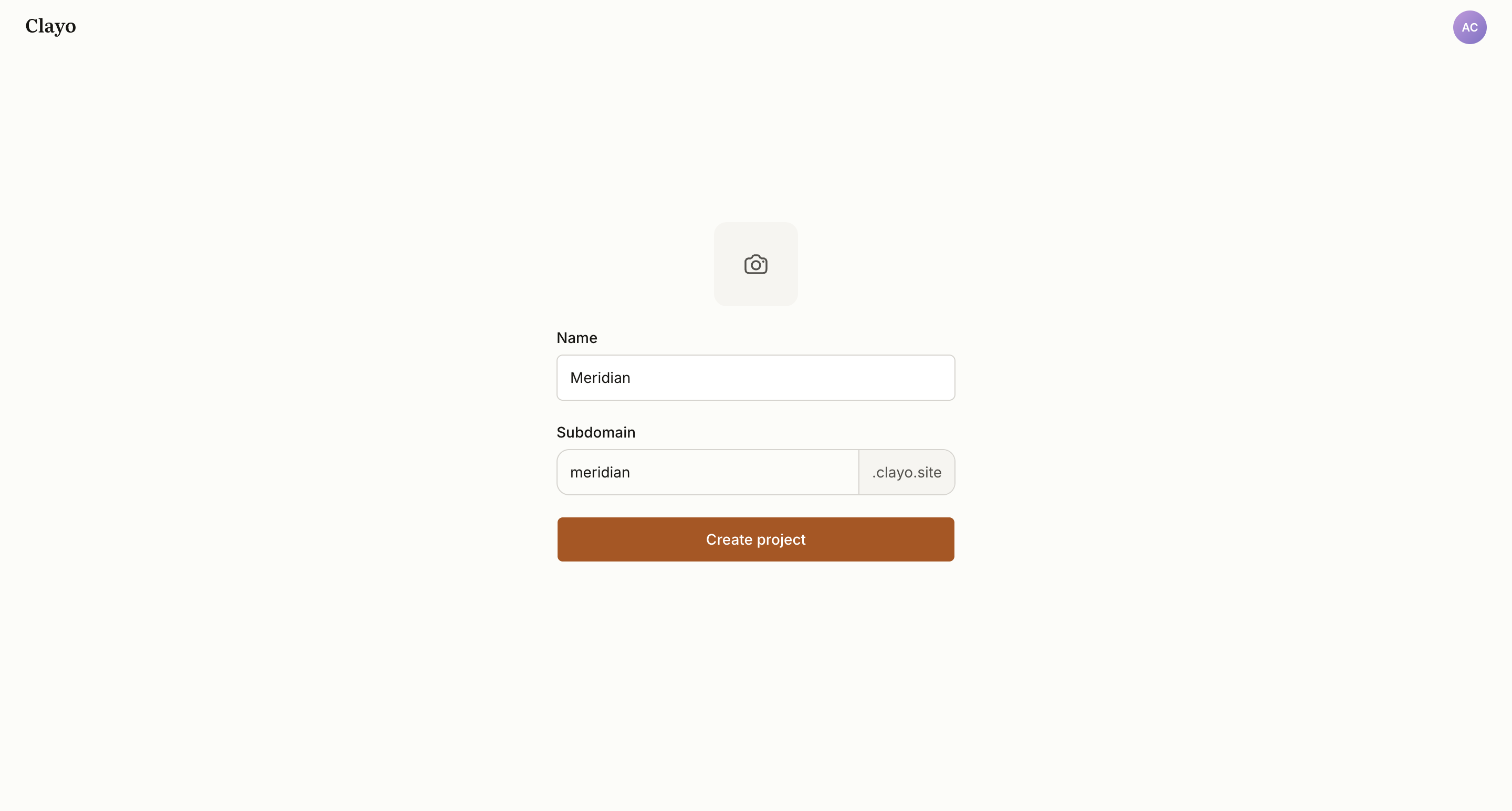
If you are new, Clayo walks you straight into project creation. You set three things:
- Name. Your product's name. It appears in the docs site header, the support widget, and emails to your team.
- Subdomain. Your docs site's address:
yourname.clayo.site. See the rules below. - Logo. Optional, and you can add it any time later in Settings. PNG, JPEG, or SVG up to 2 MB; square images look best.
Already invited to a team? You will see Join your team instead, with your pending invitation listed. Accept it and you land in the existing project, no new project needed. See Invite your team.
Choosing a subdomain
Subdomains are 2 to 63 characters of lowercase letters, numbers, and hyphens. They cannot start or end with a hyphen, cannot contain a double hyphen, and must be unique across Clayo. Names that would collide with Clayo's own infrastructure (www, api, app, admin, and similar) are reserved.
You can change the subdomain later in Settings, but links to the old address stop working. Pick a name you can keep. If you outgrow the subdomain, connect a custom domain instead; the subdomain then redirects to it.
More than one project
Each project is fully separate: its own articles, team, branding, and docs site. If you work on several products, create a project for each and switch between them with the project switcher in the sidebar. Your AI tool sees every project you belong to, so you can also tell your agent which one to work in.
Next step
Your project exists, but nothing can write to it yet. Connect your AI tool to start creating articles.